 DesignFlux Team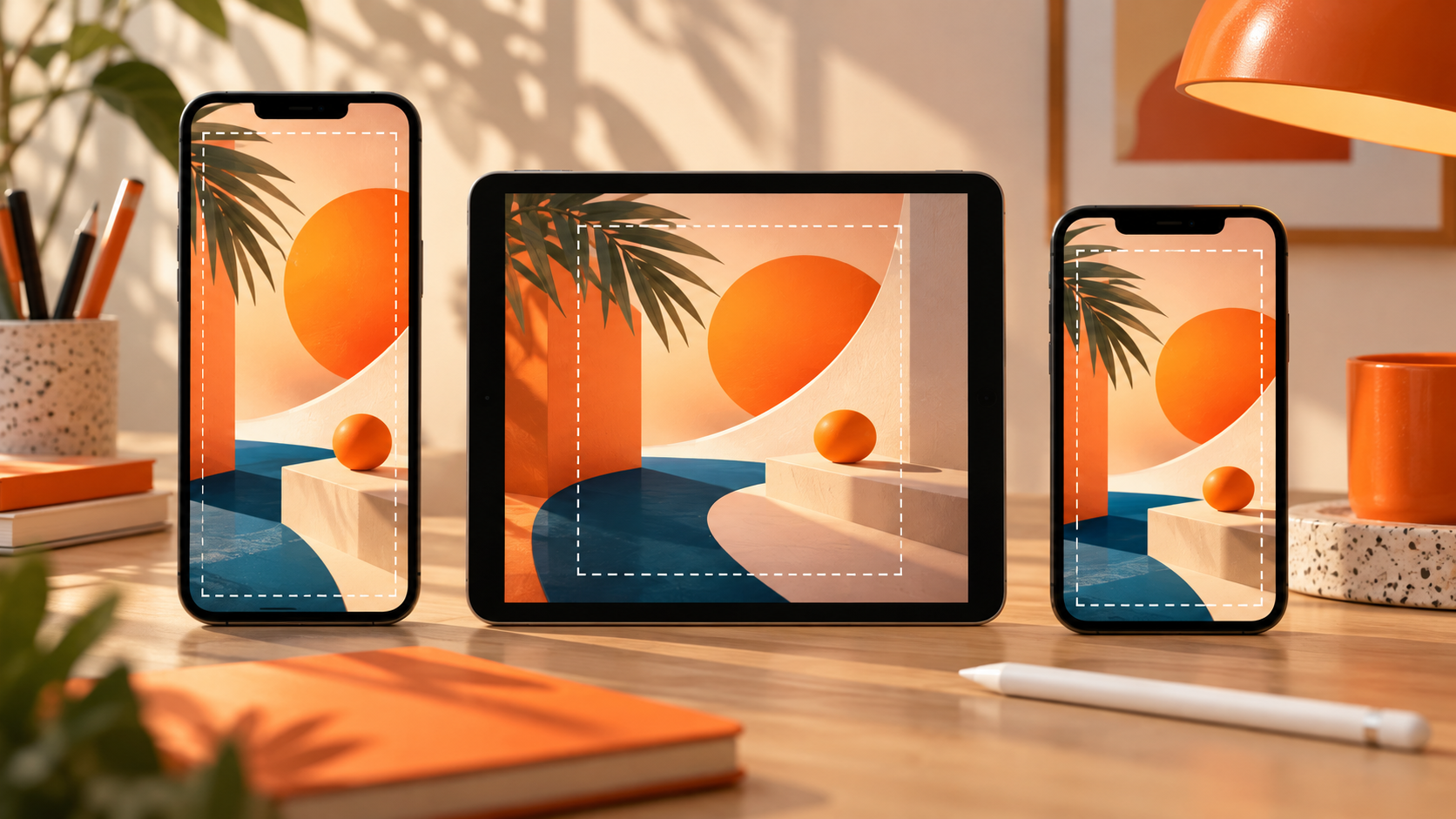
Getting meta ad image sizes right is one of the simplest ways to make your creative production more reliable. The wrong aspect ratio can crop important content, while text placed beneath interface overlays can become difficult to read. For designers and agency owners, a consistent sizing workflow helps every static ad look intentional across placements.
This guide brings together the specifications provided for Facebook and Instagram Feed, Stories, Reels, Carousel, Marketplace, right column, and search results. Use it as a working reference when creating assets, preparing exports, or handing creative files to your media buyer.
The goal is straightforward: choose the right canvas, protect important content, and deliver files that meet the requirements for their intended placements.
Meta Ad Image Sizes: The 2026 Cheat Sheet
Use the following specifications as your starting point for static Meta ads. Each placement has different requirements, so avoid assuming that one exported image will work equally well everywhere.
Facebook and Instagram Feed Image Ads
- Recommended resolution: 1440 x 1440 px for square images (1:1), or 1440 x 1800 px for portrait images (4:5).
- Recommended feed ratio: Meta recommends 4:5 because it takes more screen space on mobile.
- Supported aspect ratio range: 1.91:1 to 4:5, with 3% aspect ratio tolerance.
- Minimum width: 600 px.
- Minimum height: 600 px at 1:1 and 750 px at 4:5.
- File formats: JPG or PNG.
- Maximum file size: 30 MB.
For most feed design workflows, prepare a square and a portrait version when the campaign needs both. This lets you compose each layout for its intended shape rather than forcing one design to fit every canvas.
Stories and Reels
- Recommended resolution: 1440 x 2560 px.
- Aspect ratio: 9:16.
- Minimum width: 500 px.
- File formats: JPG or PNG.
- Maximum file size: 30 MB.
Full-screen placements need particular attention to interface overlays. For Stories, leave the recommended safe zones clear of text, logos, and key visuals so that platform elements do not compete with the creative.
Carousel Ads
- Minimum image resolution: 1080 x 1080 px per card.
- Aspect ratio: 1:1.
- Number of cards: 2 to 10.
- File formats: JPG or PNG.
- Maximum file size: 30 MB per image.
Design each card as part of a coordinated sequence. Keep typography, colors, and visual hierarchy consistent while ensuring each card communicates its own message clearly.
Marketplace, Right Column, and Search Results
- Image resolution: 1080 x 1080 px or larger.
- Aspect ratio: 1:1.
- File formats: JPG or PNG.
- Maximum file size: 30 MB.
Although these placements share the same square format guidance, their presentation can differ. Review the actual placement previews before delivery, particularly when a design includes small text or detailed product imagery.
How to Choose Between Square and Portrait Feed Images
Square and portrait layouts serve different design needs. Your choice should reflect the intended placement, the message, and the way you want the creative to occupy the available screen space.
Use square when the composition benefits from balance
A square canvas works well when the design relies on a centered product, a compact headline, or a balanced arrangement of text and imagery. It can also simplify production when your campaign requires a consistent square format across multiple assets.
However, square does not automatically mean that the design will work everywhere. A square layout may leave less room for a longer headline or a product image that benefits from a vertical composition.
Use portrait when you want more mobile feed space
Meta recommends the 4:5 ratio for Feed because it takes more screen space on mobile. The taller canvas gives designers more room to establish a clear headline, feature a product, and organize supporting information.
For example, a promotional ad might use a strong headline near the top, a prominent product image through the center, and supporting offer details below it. The design still needs careful spacing, but the portrait format gives you more vertical room to work with.
Do not stretch one composition into every ratio
Resizing a square layout into portrait format without reviewing the composition can create unnecessary gaps, awkward alignment, or poorly balanced content.
Instead, treat each aspect ratio as a separate composition within the same creative system. Preserve the message and visual identity, then adjust the hierarchy, spacing, and image placement to suit the canvas.
This approach also makes testing more useful. When your team evaluates different formats, each version should look deliberately designed rather than like an automatic resize. A structured creative testing framework can help your team document which concepts and formats it evaluates.
Stories and Reels Safe Zones: Protect the Important Content
A full-screen design can look perfect in your editing software and still lose important information once the platform interface appears. Profile information, captions, and call-to-action buttons can cover parts of the creative.
For Stories, keep text, logos, and key visuals out of these areas:
- Top: Leave about 14% clear.
- Bottom: Leave about 35% clear.
- Each side: Leave about 6% clear.
These safe zones protect the most important parts of the design from interface overlays. They are particularly important when your headline, product details, or offer must remain visible for the message to make sense.
Build a center-weighted composition
Keep the main message, product, and other essential elements within the central working area. You can still use the full canvas for background colors, decorative elements, photography, and other visuals that do not need to remain fully visible.
For example, a designer creating a Story promotion can place the primary headline and product in the central area, with supporting decorative graphics extending toward the edges. If interface elements overlap the outer areas, the core message remains easier to understand.
Check every full-screen export in context
Do not rely exclusively on the design canvas. Preview the creative in the intended placement and check whether the platform interface obscures anything important.
Pay special attention to logos near the top, offer details near the bottom, and small text close to either side. A layout can technically fit the canvas while still creating a poor viewing experience.
Build a Master-File Workflow for Meta Ad Image Sizes
A consistent production workflow reduces rework and makes it easier to manage multiple clients, campaigns, and placement requirements. Instead of treating every export as a new design project, build a master file for each relevant ratio family.
Start with a master composition
Create your main design at the recommended resolution for the intended aspect ratio. Keep editable text, imagery, and supporting elements organized so you can adapt the design without rebuilding it from scratch.
For Feed, maintain the square and portrait versions when both are required. For Stories and Reels, create a dedicated full-screen layout. Carousel cards should follow the required square format.
Create a reusable safe-zone template
Keep a separate guide layer or reference template for Stories safe zones. Use it while designing and reviewing, then hide or remove the guide before exporting the final image.
Make sure everyone involved in production understands which areas must remain clear. This prevents a common handoff problem where one designer follows the safe-zone guidance but another moves a headline or logo into an overlay area during revisions.
Export for the intended placement
Use JPG or PNG for the placements covered in this guide, and check the relevant file-size limit before delivery. Keep the master file editable so future changes do not require rebuilding the composition.
Use descriptive filenames that identify the campaign, creative concept, and placement. A clear naming system helps media buyers distinguish between versions and reduces the risk of uploading the wrong asset.
Plan production capacity around variations
When an agency manages multiple campaigns, the work extends beyond designing the first creative. Each concept may need alternate aspect ratios, new hooks, placement-specific layouts, and revisions after review.
DesignFlux offers an unlimited graphic design subscription at $1,495 per month, with a dedicated designer and project manager, unlimited requests and revisions, typical 24 to 48 hour turnaround, and no contracts. For agencies with recurring creative needs, this can provide a consistent way to manage size variants and safe-zone-aware layouts.
Regardless of who produces the work, document the requirements in your creative brief. Clear specifications help designers prepare the right exports without repeated clarification.
Delivery Checklist Before Sending Files to the Media Buyer
Before you hand off a static ad, review the file against its intended placement. This final check helps prevent avoidable production issues and gives the media buyer assets that are ready for upload.
- Confirm the placement: Identify whether the file is for Feed, Stories, Reels, Carousel, Marketplace, right column, or search results.
- Check the aspect ratio: Confirm that the canvas matches the placement requirements.
- Verify the resolution: Check the recommended dimensions or the applicable minimums.
- Review safe zones: For Stories, ensure text, logos, and key visuals remain clear of the specified top, bottom, and side areas.
- Check the format: Export as JPG or PNG.
- Check the file size: Ensure the export stays within the applicable 30 MB limit.
- Preview each placement: Check composition, readability, cropping, and interface overlays in context.
- Use clear filenames: Make the placement and creative version easy to identify.
- Remove guides: Ensure safe-zone templates and other production guides do not appear in the final export.
- Confirm the handoff: Include the final exports and any organized editable files agreed upon with the team.
Make this checklist part of your standard workflow rather than an optional final step. It is easier to catch a misplaced logo during review than after the media buyer has already uploaded the creative.
Common Mistakes When Preparing Meta Ad Image Sizes
Using one square file for every placement
A square asset may suit Feed or Carousel, but Stories and Reels use a full-screen format. Build dedicated layouts when the placement requires a different ratio rather than forcing one composition into every canvas.
Placing important content too close to the edges
Edge-heavy layouts can become difficult to read when interface elements cover the design. Follow the Stories safe-zone guidance and keep essential information in the central working area.
Exporting files without checking the specifications
Do not assume that every export meets the resolution and file-size requirements. Check the actual dimensions, format, and file size before sending the asset to the media buyer.
Forgetting Reels and Stories overlays
A clean design canvas does not show the full experience of a live placement. Preview the asset in context and confirm that the platform interface does not obstruct the headline, logo, or product details.
Resizing without adjusting the layout
Automatic resizing can create awkward spacing or reduce the impact of the main message. Recompose each ratio deliberately while keeping the same creative direction and brand identity.
Frequently Asked Questions
What is the recommended Meta ad image size for Feed?
The recommended resolution is 1440 x 1440 px for square images or 1440 x 1800 px for portrait images. Meta recommends the 4:5 portrait ratio for Feed because it takes more screen space on mobile. Choose the format that suits the intended placement and composition.
What size should I use for Stories and Reels image ads?
Use 1440 x 2560 px with a 9:16 aspect ratio as the recommended resolution for Stories and Reels. The minimum width is 500 px, and the file must be JPG or PNG with a maximum size of 30 MB. Keep essential content clear of the Stories safe zones.
What are the safe zones for Meta Stories ads?
Leave about 14% of the top, 35% of the bottom, and 6% on each side free of text, logos, and key visuals. These areas help protect important content from profile information, captions, and call-to-action buttons that may appear over the creative.
What image size should I use for Meta Carousel ads?
Use square images of at least 1080 x 1080 px for Carousel cards. A carousel can contain 2 to 10 cards, and each image must use JPG or PNG with a maximum file size of 30 MB. Keep the visual system consistent across the sequence.
Can I use the same image for every Meta placement?
One image will not suit every placement equally well because Feed, Stories, Reels, and Carousel have different aspect ratio requirements. Prepare placement-specific layouts when necessary, then check each export’s dimensions, file size, composition, and safe zones before delivery.
Final Takeaway
Reliable creative production starts with the correct canvas, but it does not end there. Choose the right aspect ratio for each placement, keep essential content clear of interface overlays, and check every export before handing it to your media buyer.
Save this cheat sheet as a reference for your next production batch. With consistent master files, reusable safe-zone guides, and a dependable review checklist, your team can create static ads that are better prepared for their intended placements.